
Select date and time in CygNet using the Select Date and Time dialog box.
Note: The following information applies for date/time selectors with a variety of names, for example, Select Install Date for adding meters to your system, Select Filter Starting Date/Time for file imports, or Select Date and Time in many other locations throughout your CygNet applications. The time element is not enabled for every usage.
See Date and Time Wildcards for more information about date and time wildcards used in CygNet applications and dialog boxes.
See Time Zone Page in the Devices section for more information about selecting date and time in remote device editors.
Click on selector icons throughout CygNet to access the date/time selector dialog box to configure date/time information for your specific usage.
Note: In some instances the time fields are not enabled, as they do not apply.
Dates can be configured as Absolute Date/Time, Relative Date/Time, or Relative Day.
Note: If either Relative Date/Time or Relative Day are used, the applicable Current Time, Adjusted Time, and Relative Time will be displayed at the bottom of the dialog box, as configured by your selections.
The date selector supports configuring an Absolute Date/Time by defining the Date and Time. In some cases, the time field is dimmed since it does not apply to the current usage.
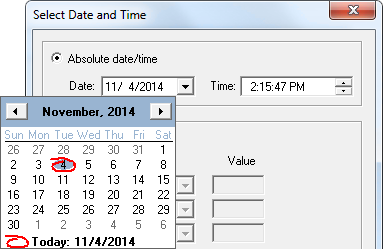
Date is defined by typing the date directly into the text box in the format mm/dd/yyyy, or by using the drop-down calendar date selector.
Time is defined by clicking to select the portion of the default time you want to change, then either typing the value into the text box in the format HH:MM:SS plus AM/PM, or using the up/down arrows to navigate to the desired value.
The date selector supports configuring a Relative Date/Time offset from the current date/time, for Year, Month, Day, Hour, Minute, and/or Second. In some cases, the time fields are dimmed since they do not apply to the current usage.
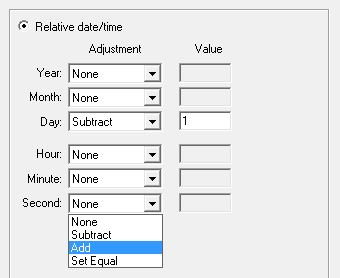
Adjustment operators and acceptable Value ranges for the Set Equal option are as follows for each parameter.
Note: The Value field is disabled when None is the selected adjustment operator.
| Parameter | Adjustment Operator | "Set Equal" Value Range |
|---|---|---|
|
Year (y) |
|
0 - 2100 |
|
Month (m) |
|
1 - 12 |
|
Day (d) |
|
1 - 31 |
|
Hour (H) |
|
0 - 23 |
|
Minute (M) |
|
0 - 59 |
|
Second (S) |
|
0 - 59 |
The applicable Current Time, Adjusted Time, and Relative Time will be displayed at the bottom of the dialog box, as configured by your selections.
The date selector supports configuring a Relative Day offset from the current date (Today, also represented as T), for a selected number of Days. In some cases, the time does not appear in the Adjusted Time field since it does not apply to the current usage.
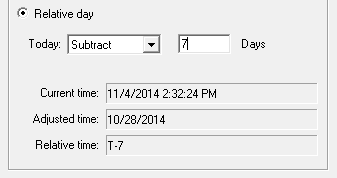
Options for Adjustment operators include None, Subtract, or Add.
Select Subtract or Add to enable the Value field, then type the number of Days into the value text box.
The applicable Current Time, Adjusted Time, and Relative Time will be displayed at the bottom of the dialog box, as configured by your selections.
Example
The result will appear as T-7 to represent a data view from "7 days earlier than (before) Today."
The following scripting options are available for data interface functions related to the Relative Time dialog box.
| COM API | Description and Link |
|---|---|
|
CxDialogs CxScript |
The ShowRelativeTimeDialog method shows the Relative Time dialog box.
|

|
|
|

